How to Set Up a Gaming Headset on PC (Complete Guide 2026)
Learn how to set up a gaming headset on PC in 2026 with easy steps for wired and wireless headsets to get clear sound and mic performance.
Setting up a gaming headset on a PC is simple, but incorrect settings can lead to poor sound or mic issues. Whether you’re using a wired or wireless headset, this step-by-step guide will help you get the best audio and microphone performance on your PC.
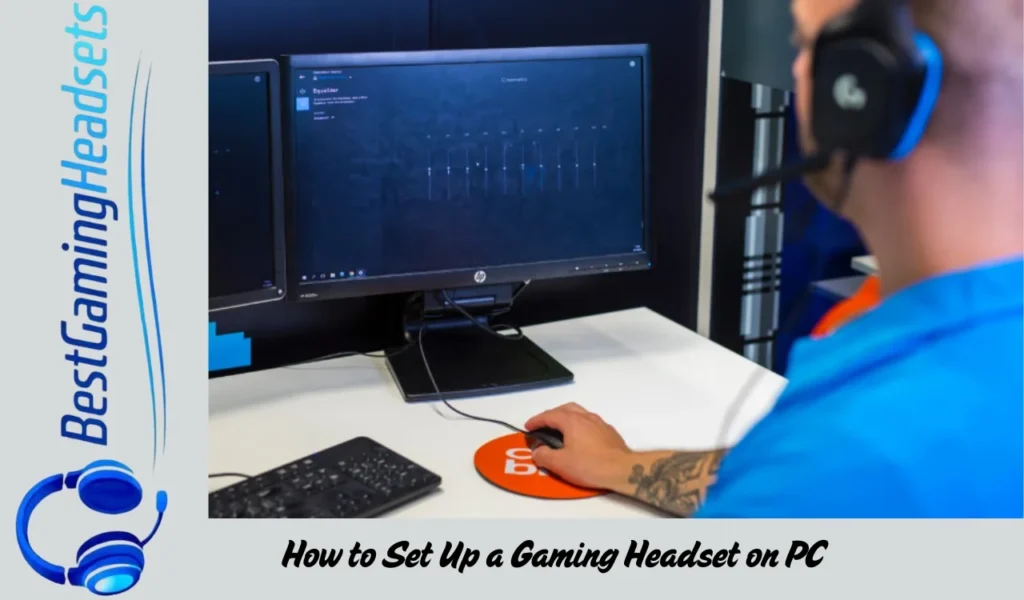
Before You Start
Make sure you know:
- Whether your headset is wired or wireless
- What connection it uses (3.5mm, USB, or wireless dongle)
- Your PC operating system is updated
How to Set Up a Wired Gaming Headset on PC
Step 1: Connect the Headset
Plug the headset into:
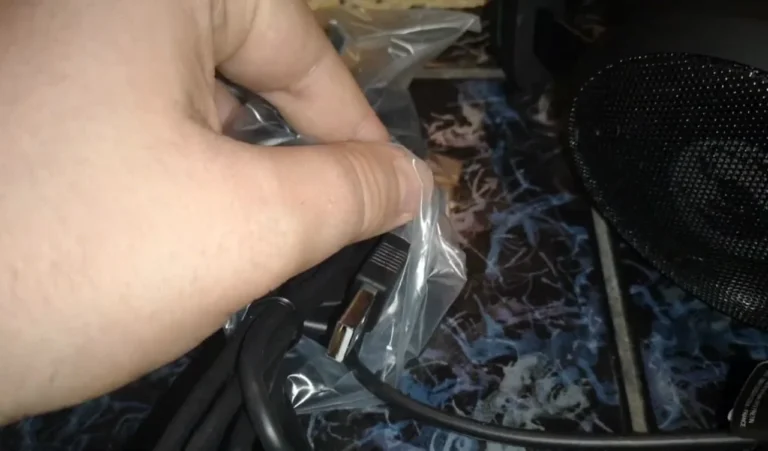
- 3.5mm audio jack, or
- USB port (for USB headsets)
If your headset has separate mic and audio jacks, use a splitter if needed.
Step 2: Select the Audio Device
- Right-click the speaker icon in the taskbar
- Open Sound settings
- Set your headset as the default output device
Step 3: Set Up the Microphone
- Go to Input settings
- Select your headset microphone
- Speak and confirm the mic level moves
How to Set Up a Wireless Gaming Headset on PC
Step 1: Plug in the Wireless Dongle
Insert the USB dongle into your PC. Most headsets connect automatically.
Step 2: Turn On the Headset
Power on the headset and wait for it to pair with the dongle.
Step 3: Confirm Audio & Mic Settings
Set the headset as both:
- Default audio output
- Default microphone input
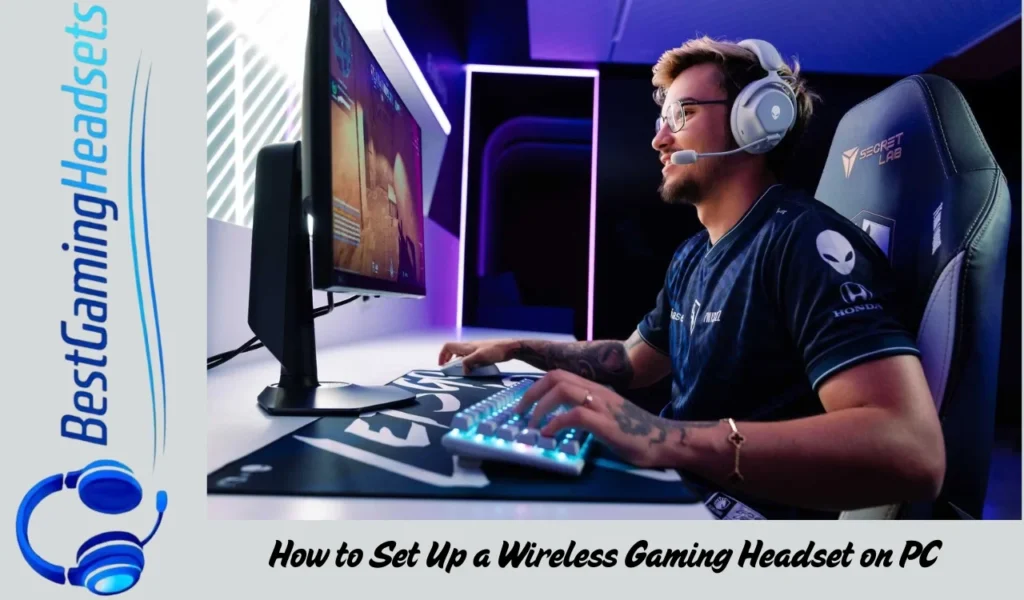
Adjust Sound & Mic Quality
To get the best experience:
- Set headset volume to 70–80%
- Adjust mic sensitivity to avoid distortion
- Enable noise suppression if available
Install Headset Software (Optional but Recommended)
Many gaming headsets offer PC software for:
- EQ customization
- Surround sound
- Mic tuning
Installing this software can significantly improve performance.
Common Setup Problems & Fixes
| Issue | Fix |
| No sound | Check default audio device |
| Mic not working | Select correct input device |
| Low volume | Increase system & headset volume |
| Echo or noise | Lower mic gain |
My Choice
For PC gaming in 2026, I recommend a USB or low-latency wireless headset. These options offer better audio stability, easier setup, and cleaner mic performance compared to basic 3.5mm headsets.
You May Also Like
- Top 10 Best Gaming Headset
- Is the Razer Hammerhead Good?
- Is the Razer Nari Ultimate Good?
- Audio-Technica ATH-M50xSTS not turning on?
FAQs About How to Set Up a Gaming Headset on PC (Complete Guide 2026)
Final Verdict: PC Headset Setup Made Easy
Setting up a gaming headset on PC in 2026 takes just a few minutes. With the correct settings and optional software, you can enjoy clear audio, strong mic performance, and a smooth gaming experience.