Why SteelSeries Arctis 1 Wireless Not Working? Easy Fix Guide
Why SteelSeries Arctis 1 Wireless Not Working: troubleshooting common issues, connection fixes, and simple steps to restore audio and connectivity fast.
The SteelSeries Arctis 1 Wireless is a famous gaming headset, which is regarded as a lightweight and stable device, yet, as any technological product, it may break down occasionally. The issues that are common are no audio, no microphone, connection issues or no detection of the headset. Such issues may be related to the hardware failure, aged drivers, or software incompatibility, or wrong system configurations. This troubleshooting guide will make it easy to resolve every possible cause.
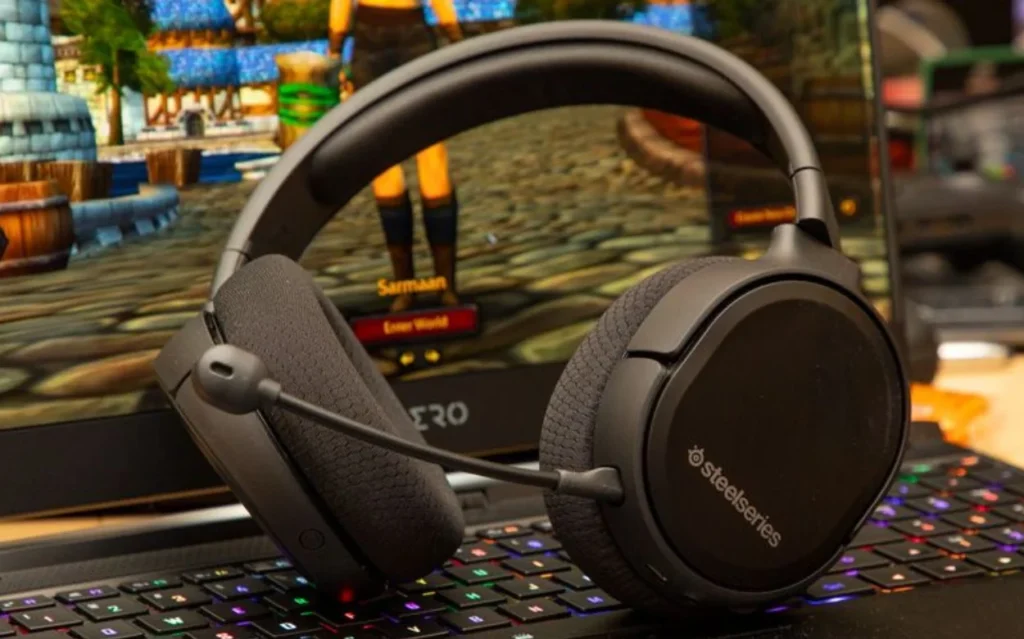
This guide is intended to offer solutions step-by-step, which can be understood by novices and experts. These instructions will help you recognize whether the issue is related to software, hardware or settings. Each of the solutions is viable and aimed at returning your headset to its functionality so that you could enjoy continuous gameplay with good sound and working controls.
Common Reasons Why Arctis 1 Wireless Stops Working
Among the most common reasons why the Arctis 1 Wireless was not working is the outdated or corrupted drivers. In case the SteelSeries Engine software is not running with the latest drivers, or your system drivers, the headset will not connect correctly or will have audio dropouts. The device also may not be detected properly in case of incorrect system settings in Windows or consoles.
Another typical cause is hardware problems. The headset can break down due to loose USB dongles, malfunctioning connectors, or disruption in the wireless signal. Knowing the possible causes will allow reducing the troubleshooting process to a minimum, so that it will be possible to solve the problem without engaging in needless trial and error.
Steps 1: Power and Connection Checks
The initial one is to power on the headset and the USB dongle and make sure that they are properly connected. Ensure that the dongle is well inserted in a working USB port. To use wirelessly, ensure that the headset battery is fully charged. A simple attempt at testing another USB port or cable can also very well fix a small connection problem, particularly when the headset is not recognized at all.
Check the headset and dongle, inspecting them to identify visible damages, such as bent pins and loose connectors. A minor physical problem can also stop the transmission of audio. Simply ensuring that all the components are safe and intact is sometimes sufficient to resolve the simplest sources of failure without software troubleshooting.
Step 2: Updating SteelSeries Engine and Firmware
SteelSeries Engine is necessary to control headset functions and configuration. Software that is obsolete may cause connection issues, audio or even cause the headset to be unrecognized. Install and update to SteelSeries Engine version and verify the firmware of the headset and the USB dongle.

Wireless bugs and stability are usually fixed through a firmware update. As long as both the device and the software are kept updated, then there is as much compatibility as possible with your system and can avoid any connectivity problems. Periodical updates also increase the performance and can remove most of the random audio issues that Arctis 1 Wireless users face.
Step 3: Select Headset as a Default
Wrong system settings may deny the possibility of audio passing through the Arctis 1 Wireless. Under windows, go right-click on the speaker icon – Sound Settings – Playback tab – click on the headset – click on Set as default. Repeat the same under the Recording tab with regards to the microphone. This makes sure that there is proper routing of all audio and voice input via the headset.
There are also game or communication application settings specific to check applications like Discord or OBS. These apps might be set up to use a different device even though Windows might recognize the headset. Properly setting the default device in all the software to the headset to be used in the gaming will guarantee all the audio and mic functions.
Step 4: Wireless Interference Check and Pairing
Connection drops or sound problems are likely to be caused by wireless interference. Other devices such as routers, Bluetooth gadgets or wireless controllers may interfere with the 2.4GHz signal of the Arctis 1 Wireless. Change of USB dongle to another port or transfer of the transmitter can enhance stability of signals. Unexpected disconnections can also be fixed by resetting the wireless pairing.
In case the headset does not connect with the dongle, re-connect the devices manually as per the user manual. A factory reset of the headset or dongle can also be useful in getting rid of corrupted pairing data. Having a clean wireless environment can go a long way in ensuring that there is stability and that there will be no interruption of signals when playing games.
Step 5: Test on Another Device
Should the issues continue, test the headset with another PC, laptop or console. In case it functions properly on another device, then it is probably a problem with the drivers or the settings of the original system or the USB ports. The test on different equipment aids in isolating the source of the issue and eliminates the needless troubleshooting of irrelevant parts.
When the headset is not functioning with several devices, then it means there is a problem with hardware. It is advisable to contact SteelSeries support to get it repaired or replaced in such cases. The simple and efficient method to find out whether the issue is software-related or caused by physical damages is to test the headset on various devices.
Additional Tips
Always keep the USB dongle and headset connectors clean and dust-free since dirt may obstruct transmission of signals. Persistent problems can be solved by re-installation of SteelSeries Engine. Always remember to check the firmware updates, they correct bugs and also become more compatible with other systems. The correct handling of cables and keeping the headset in a safe location when not in use will assist in avoiding the occurrence of minor physical problems.

Maintenance and frequent software updates enhance the performance and reliability of the headset. These extra hints will make sure that you will have a stable and good quality audio and microphone operation of your Steelseries Arctis 1 Wireless as long as possible so that you can have gaming fun without interruptions.
You May Also Like
- Top 10 Best Gaming Headset
- Is the Razer Nari Ultimate Good?
- Why Does Your Gaming Headset Keep Cutting Out?
- Why Sennheiser HD 550 Not Working
FAQs About Why SteelSeries Arctis 1 Wireless Not Working
Conclusion
The SteelSeries Arctis 1 Wireless tends to fail because of the problem of the driver, the old version of the firmware, the wrong settings, or the wireless interference. By using the step-by-step resolutions in this guide, you may easily fix most issues and troubleshoot. The headset will be in good working condition through proper maintenance, updating of the firmware, and proper setup of the system.
In case problems remain after all the troubleshooting, it is advisable to contact the SteelSeries support. Your Arctis 1 Wireless can deliver high-quality audio and mic performance, which, in turn, will make your gaming and communication experiences consistent due to the elimination of the root causes.