Why Is Corsair HS55 Stereo Gaming Headset Not Turning On?
Learn common reasons Why Is Corsair HS55 Stereo Gaming Headset Not Turning On? and simple troubleshooting tips to help fix power, connection, or audio issues fast.
Loose audio connection
Faulty headset cable
Incorrect sound settings
Disabled audio device
Problems with compatibility of drivers.
Port hardware failure
Corsair HS55 Stereo Gaming Headset is a lightweight wired headset that is geared towards providing clear stereo sound, comfort, and reliable performance that can be used in daily gaming. It is popular among casual and competitive gamers who do not want extra software. Even though the design is reliable, there is a case where the user cannot get the headset to boot up or it makes no sound and this stops their gaming sessions.
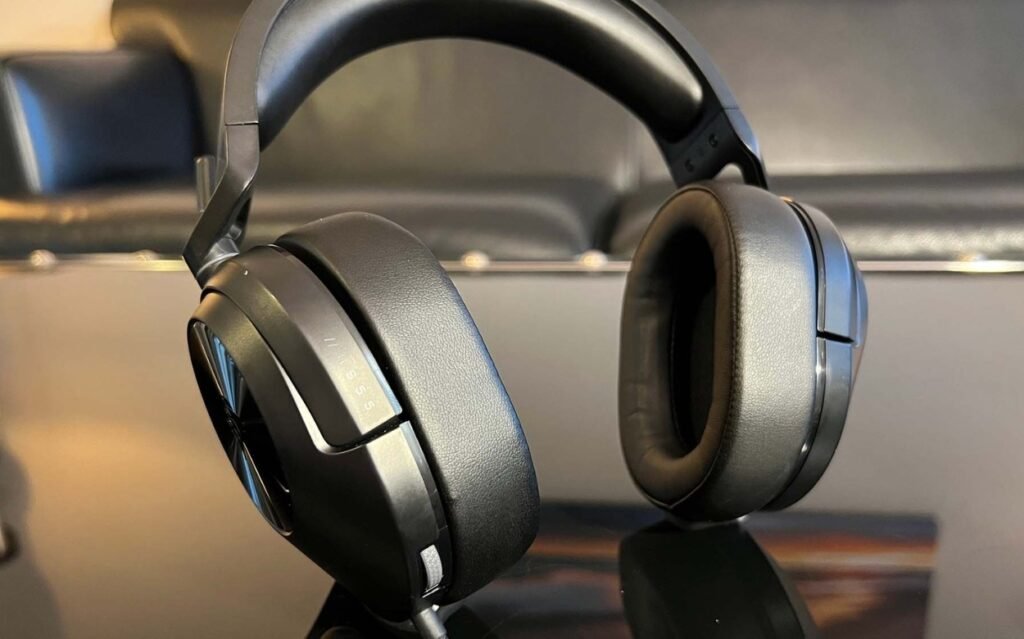
In a case when Corsair HS55 does not respond, the problem is generally small and does not involve any irreparable damage. Loose connections, wrong audio settings, outdated drivers, or defective ports are the causes of the problem in the majority of cases. These are typical causes of troubles that users can troubleshoot and set up in no time and get back on track even without the help of a professional.
Audio Jack or Cable Connection Issues
A faulty connection of an audio jack is one of the most frequent causes of the failure of the Corsair HS55 to start. It is a wired headset, which fully depends on a secure 3.5mm plug. When the connector is not inserted completely the headset might seem inactive altogether.
Never forget to ensure that the audio jack has been firmly inserted in the appropriate port. There are also those that have a combined audio jack and those that have individual microphone and audio connections. The improper port or loose connection may block sound and the use of a microphone.
Damaged Cable or Connector Wear
The other common reason behind headset failure is cable damage. Bending, twisting or pulling the cable repeatedly may cause damage to the inner wiring and break audio signals. Internal disruptions, even minor ones, may lead to loss of sound altogether.
Examine the cable and look out on its visible wear or weak areas. In case it mutes and unmutes every time the cable is moved, then there is bound to be internal damage. Another way that one can test the headset is by testing it on a different device so that one can confirm whether the problem is hardware or software related.
Incorrect Audio Settings or Muted Output
There are also instances when the headset functions properly but it is set up with the wrong system settings thereby making it appear as malfunctioning. When a different audio device is picked as the default output, Corsair HS55 will not make any sound.
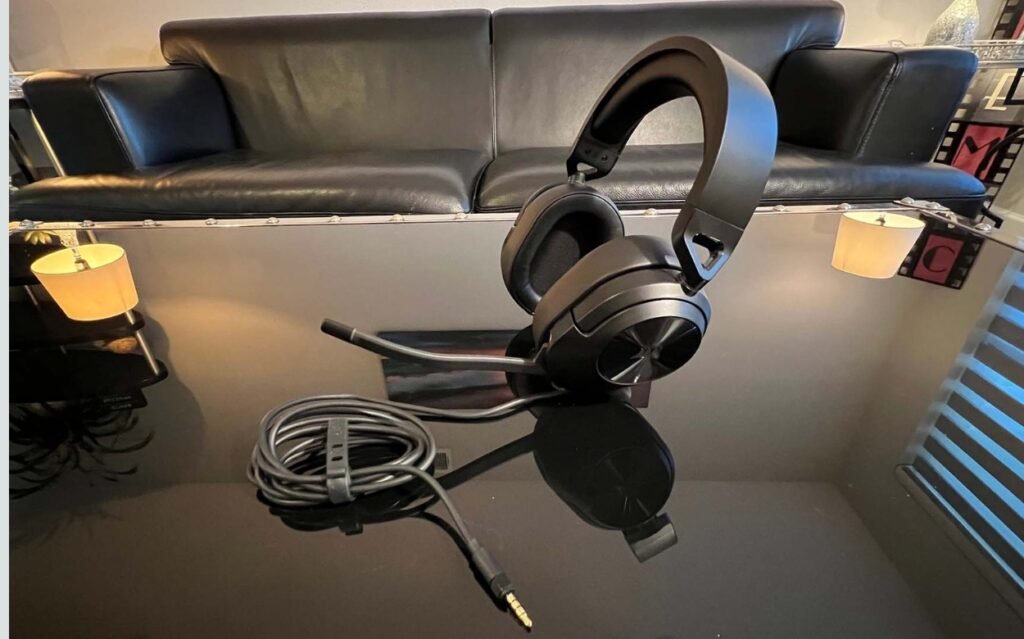
Make sure that your system has the items concerning sound checked and that the headset is the default playback and record device. Also ensure that the volume is not silenced and the inline volume control is set up appropriately.
Driver or System Compatibility Issues
The Corsair HS55 cannot work properly when using outdated audio drivers or corrupt ones. This is common following updates of the operating systems. The system may recognize the headset but it still does not play.
The compatibility problems can normally be fixed by updating audio drivers via the device manager. Starting the system again, having updated the drivers, can enable appropriate initializing the system and restore the stable audio work.
Port or Adapter Problems
The headset may also stop functioning because of faulty audio ports or broken adapters. The audio port in the front panel can at times provide unstable signals relative to the motherboard port.
Attempt to use the headset in another audio port or another device. In case it is not working in another port or adapter, the original port or adapter might be faulty and it needs to be replaced.
My Personal Experience
I had a personal experience with Corsair HS55, and most of the problems that appeared were the result of poor audio settings instead of hardware malfunction. In one instance, the headset was entirely dead as the system automatically changed the audio output to external speakers following an update. The problem was solved by the mere choice of the right output device.
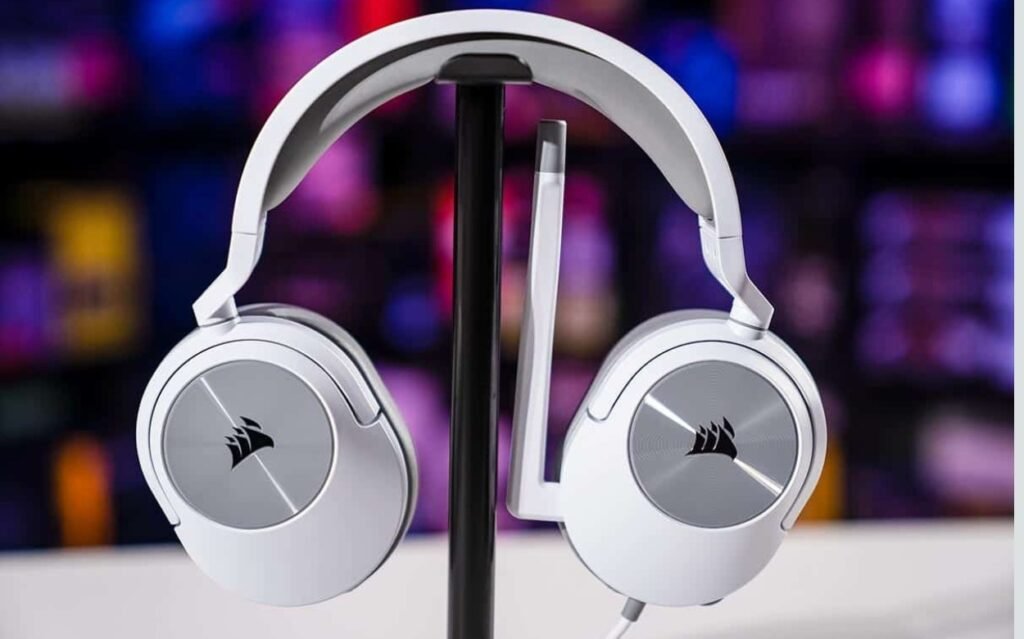
Trying the headset on another machine has also come in handy to easily establish whether the failure is with the headset or the system. This easy action will save time, and will not entail any unnecessary troubleshooting.
You May Also Like
- Top 10 Best Gaming Headset
- Is the Cooler Master MH752 USB Gaming Headset Good?
- Audio-Technica ATH-M50xSTS not turning on?
- Is the Razer Hammerhead Good?
FAQs About Why Is Corsair HS55 Stereo Gaming Headset Not Turning On?
Conclusion
The reason Corsair HS55 Stereo Gaming Headset fails to boot is normally due to connection problems, cable breakage, wrong audio preferences, or driver incompatibility. The majority of these issues are readily managed and diagnosed using simple troubleshooting procedures. Secure connections, proper system set up, and updated drivers will make most cases go back to normal functioning. Provided that the problem persists, the only long-term solution to the reliability of the headset is to test it on a different device or to address the Corsair support.