How To Reset Corsair HS80 RGB Wireless: A Complete Guide
Learn How To Reset Corsair HS80 RGB Wireless headset on pc or mobile to fix connection, audio, or microphone issues and restore smooth performance in minutes.
- Turn headset completely off
- Hold power button 20s
- Release button and wait
- Power headset back on
- Reconnect wireless USB dongle
- Test audio and mic
The Corsair HS80 RGB Wireless is one of the highest quality of the gaming headsets characterized by a high-quality sound, comfortable fit, and adjustable RGB lighting. In spite of all its features, users sometimes experience some issues such as connection loss, non-responsive buttons and audio glitches. One of the effective solutions is the resetting of the headset which restores the factory settings and guarantees proper working performance when playing games.
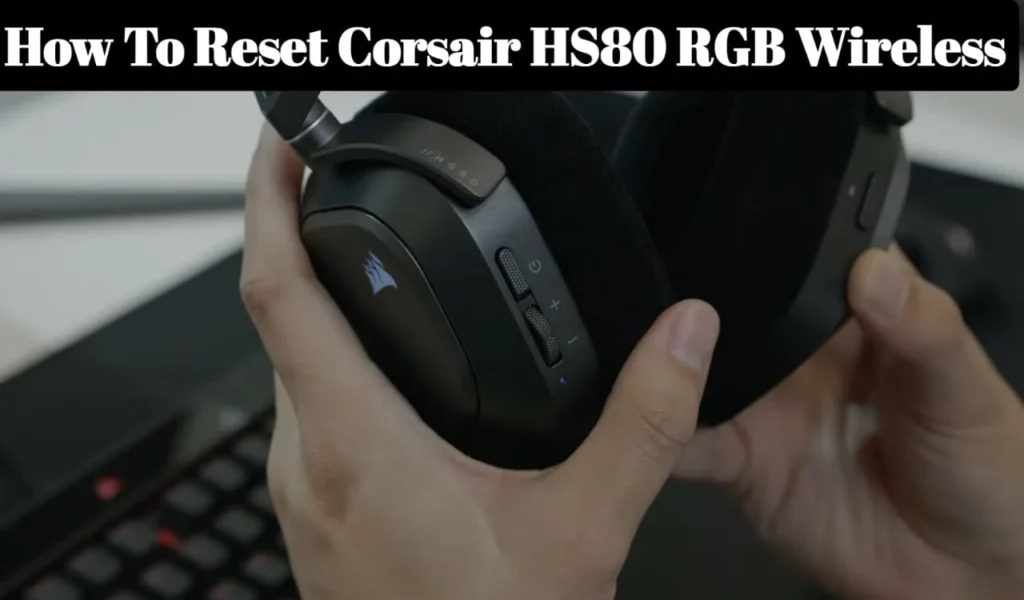
It is necessary to learn the proper procedure of resetting the device to ensure maximum functionality. The guide will contain step-by-step instructions on how to give the software-based and manual resets and allow gamers to troubleshoot on their own. These steps ensure that the users have unbroken and high quality audio and consistent wireless usability, which keeps the headset in optimal working conditions.
Why Resetting Your HS80 RGB Wireless is Important
It is also necessary to reset HS80 RGB Wireless when the headset is unresponsive, fails to connect, or has problems with sound. These issues can be caused by firmware incompatibility, or a software glitch, and in such a case, a reset is the fastest method of restoring sanity. A reset will make sure that the headset is functioning well, which is vital to immersive and uninterrupted gaming.
The other cause to reset is the device pairing conflicts. Players who alternate between PCs, consoles, or other gadgets can experience interference, which can result in wireless interference. The reset button clears the connections that were stored and makes reconnection possible. Periodically changing the headset helps to avoid minor problems, which do not deteriorate the quality of audio, functionality of the microphone, and the overall performance of the headset.
Resetting Using Corsair iCUE Software
Corsair iCUE software is a user-friendly and reliable method of resetting HS80 RGB Wireless. Install or open iCUE on your computer, and connect the headset to your computer, and go to the device settings. Choose the confirmation to restore default settings and confirm. This restores software settings and most performance problems are solved very fast and safely.
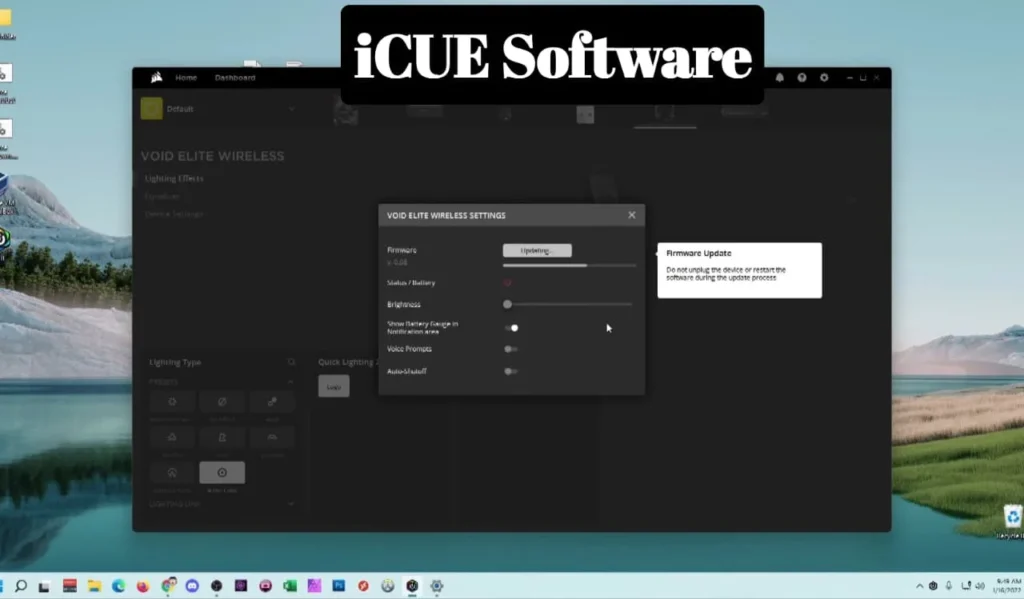
It is a convenient technique with gamers who personalize their audio profiles, equalizers, or RGB lighting. Restoring with the use of iCUE will fix any firmware conflict and will stabilize the wireless performance. This approach will ensure that minor glitches do not develop, which ensures that the audio quality, the operation of microphones, and the reliability of headsets stay on the highest possible level.
Manual Reset Method for HS80 RGB Wireless
In case iCUE software is unavailable, one can perform a manual reset on the headset. Switch off the HS80, and press and hold the power button for 15-20 seconds. Press the button again and switch back the headset on. This removes temporary memory errors and reinstates normal functionality and sorts out minor technical issues without software intervention.
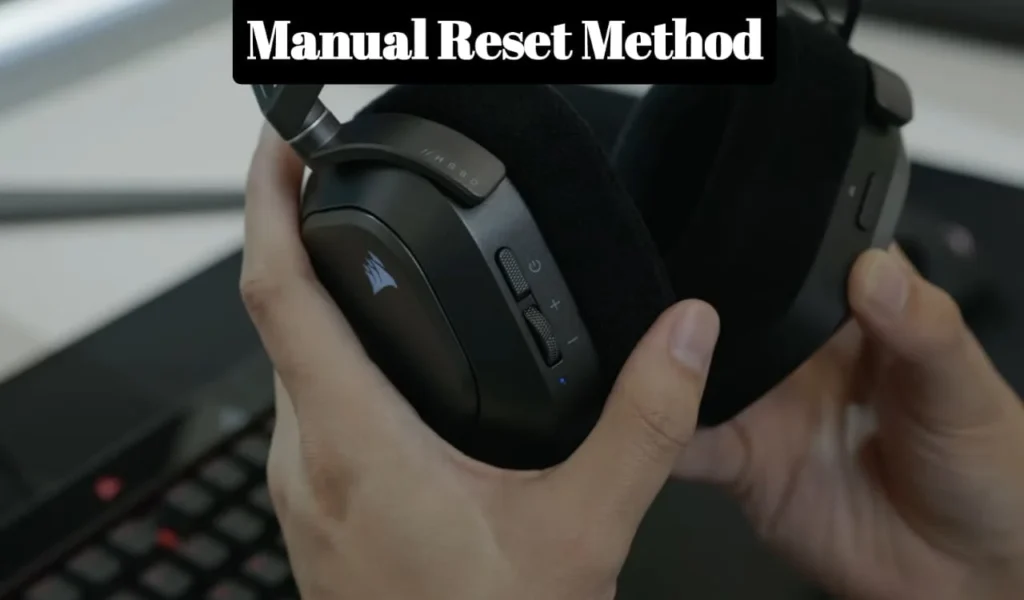
Manual resets are convenient when urgent troubleshooting is involved, particularly when one is playing a game. They resolve such problems as poor audio quality, broken microphones or inactive touch points. Gamers can easily resume normal functionality with the help of this approach and resume immersive gaming without delays and disruptions.
Resetting for Console and Wireless Performance
Users of the console can have wireless issues or problems with pairing. Unplug the USB dongle, turn the headset on, and hold the power button to get the headset into the pairing mode. To ensure that wireless stability is enhanced during gameplay, reconnect the headset to the console to ensure that proper signal recognition is achieved.
The manual and software resets can be used together by PC users in case of pairing failure. This is because disabling connections that are stored and reinstating default settings will guarantee that sound is clear and gaming without interruption. This procedure ensures a perfect wireless operation, the uniform quality of sound, and an accurate response of the microphones, which is vital in competitive or long gaming games.
Common Issues Solved by Resetting
The HS80 RGB Wireless can be rebooted to fix typical issues including low volume, audio drop, mic issues and wireless connections. Malfunction of hard disk software can lead to sluggish performance. A reset will fix factory operations and guarantee good audio, microphone functionality, and stability of the device.
Resetting is also used to overcome the problems of RGB lighting or profile customization. When lighting effects or sound presets are not responding, the default settings can be used to get things going again. This easy trick will help to avoid minor glitches before they grow, guaranteeing the stability of the headset, reliability, and the feeling of being immersed in the game.
Tips to Maintain Your HS80 RGB Wireless After Reset
The control of recurring problems is important after a reset through proper maintenance. Always update firmware and iCUE software, keep the headset locked up, and check battery status. The practices maintain good sound quality, wireless reliability and overall device performance as time goes by.
Having a few paired devices minimizes interference, whereas extreme temperatures can cause the hardware to be damaged. With the tips and regular resets, the HS80 RGB Wireless would provide the user with stable work, the sound experience, and the comfortable long-time gaming sessions without breaks or technical issues.
Care Tips Table
| Tip | What to Do |
|---|---|
| Charge fully | Plug in for 2–3 hours |
| Try another cable | Use original/known‑good USB‑C cable |
| Clean charging port | Gently remove dust/lint |
| Reset power | Hold power button ~10–15 sec |
| Test with another charger | Try wall adapter instead of hub |
My Personal Experience
I recently faced an issue where my Corsair HS80 RGB Wireless suddenly stopped connecting properly to my PC. I tried reconnecting it several times, checked the audio settings, and restarted my system, but the sound kept dropping and the microphone wouldn’t respond. It was frustrating because I use this headset daily for gaming and voice chats.
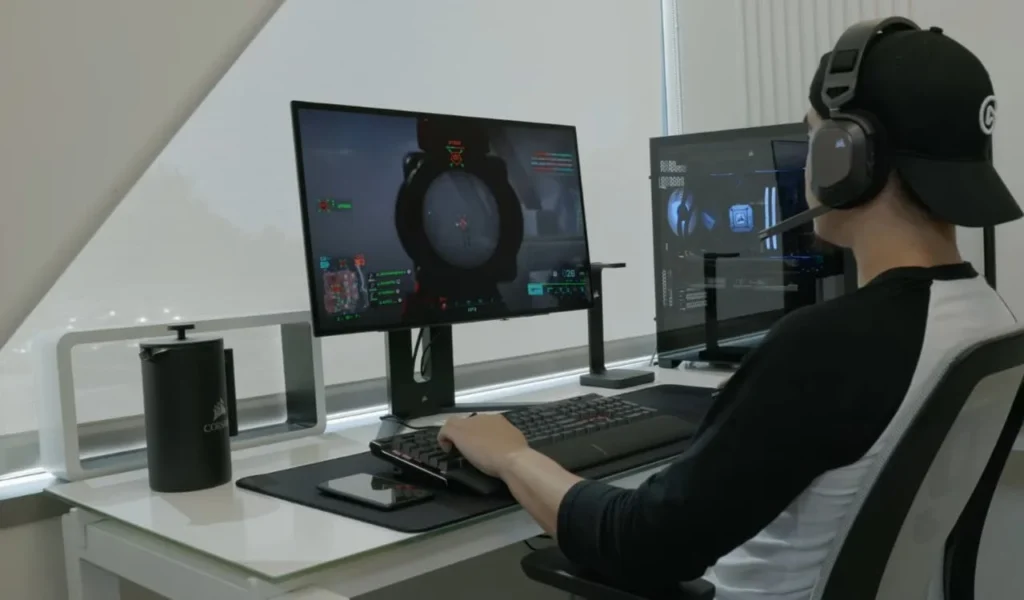
I then decded to reset the headset by following the official steps provided by Corsair. The reset process was simple, and I made sure to complete each step carefully. After the reset, the connection became stable again, and both audio and microphone started working perfectly, just like before.
You May Also Like
- Top 10 Best Gaming Headset
- Best Budget Gaming Headsets in 2026
- Turtle Beach Stealth 600 Gen 2
- Is the Beyerdynamic MMX 330 Pro
FAQs for How To Reset Corsair HS80 RGB Wireless
Conclusion
Corsair HS80 RGB wireless can be easily reset to find a solution to connectivity, audio and software problems. A reset resets default settings no matter what software is utilized (iCUE software or manual) and provides the best performance of the headsets. The frequent reset (as well as quality care) prolongs the life of the device and improves the general gaming experiences.
Through learning about the processes of reset, gamers would be able to troubleshoot on their own, prevent unnecessary repairs, and preserve quality audio. This guide will make sure the HS80 RGB Wireless can provide the same quality sound, the same kind of wireless performance, and the same type of game immersion every time.