How to Reset Logitech G Astro A50 X
Learn How to Reset Logitech G Astro A50 X headset, fix connection issues, and restore audio and microphone functions quickly and easily.
- Turn headset completely off
- Hold power button 15s
- Find reset button location
- Press reset button 10s
- Re-pair headset with device
- Test headset functions properly
Logitech G Astro A50 X is an excellent wireless gaming headset, which is appreciated with its immersive sound, comfort, and accuracy. Despite being advanced, users may experience such issues as connectivity, unresponsive buttons, or sound glitches. The best way of fixing this is to reset the headset, which will restore the factory settings and correct any small technical issues to allow the game to continue.
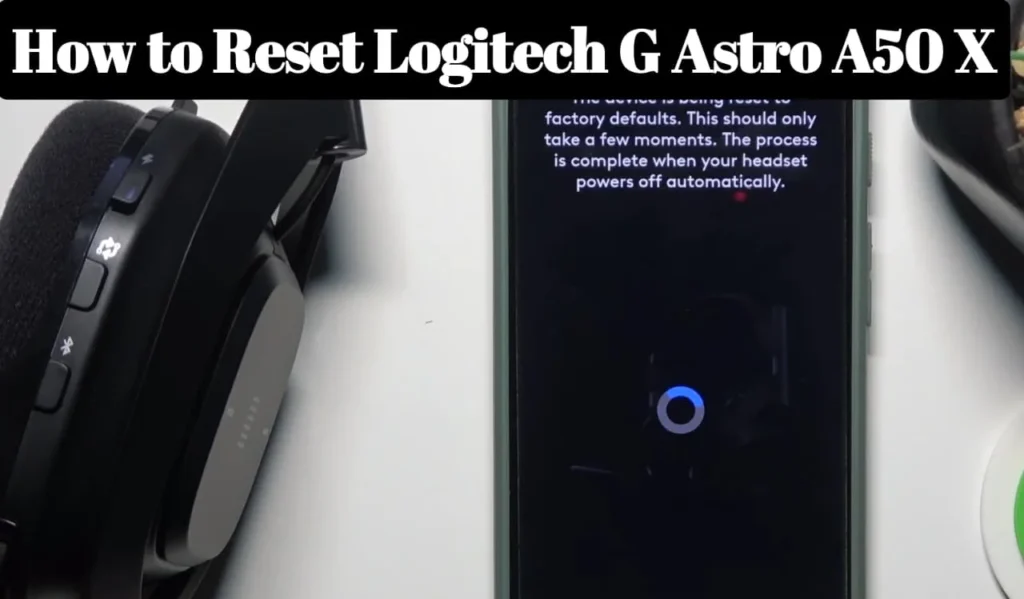
It is important to know the steps to follow when resetting your A50 X to ensure optimum performance. This manual will offer stepwise instructions about software and manual resets. These procedures enable the gamer to be able to troubleshoot on their own, which would result in a consistent sound-quality, stable-wireless-performance, and smooth gaming experiences each and every time.
Why Resetting Your Astro A50 X is Important
A reset of the Astro A50 X is required in cases when the headset fails to respond, or loses connection or has audio issues. These problems may occur as a result of firmware conflict or software error. A reset can be done to get rid of default settings, and glitches are removed, making the headset reliable to play games without interruption.
Pairing conflicts may also occur when devices are switched frequently such as PCs and consoles. By clearing stored connections, a reset can be made to allow reconnection with a seamless connection. The process is advantageous to gamers who utilize the headset in multiple platforms because it eliminates interference, maintains quality listening, and the microphone and controls are responsive.
Resetting Using Logitech G Hub Software
Logitech G Hub software is a simple method of resetting the A50 X. Open or install the software on your PC or Mac, connect the headset with the USB or wireless dongle, and follow up to device settings. Click on the restore default settings and confirm. This reinstalls software settings and clears up the majority of the performance problems.
This trick comes in handy especially to gamers who have customized sound profiles, equalizer settings or RGB lighting. Restarting using G Hub can resolve the problem of firmware differences and guarantee the successful operation of wireless devices. This practice helps avoid the minor glitches, and it is necessary to use it on a regular basis to ensure that the audio, connection, and microphone capabilities of the headset remain intact.
Manual Reset Method for Astro A50 X
A manual reset can be used in case the software is not available. Switch off A50 X and press and hold the power button 15- 20 seconds. Press the button with the release button and then switch the headset back on. This wipes down temporary memory malfunctions and reinstates normal operation, essentially correcting minor technical problems with software.
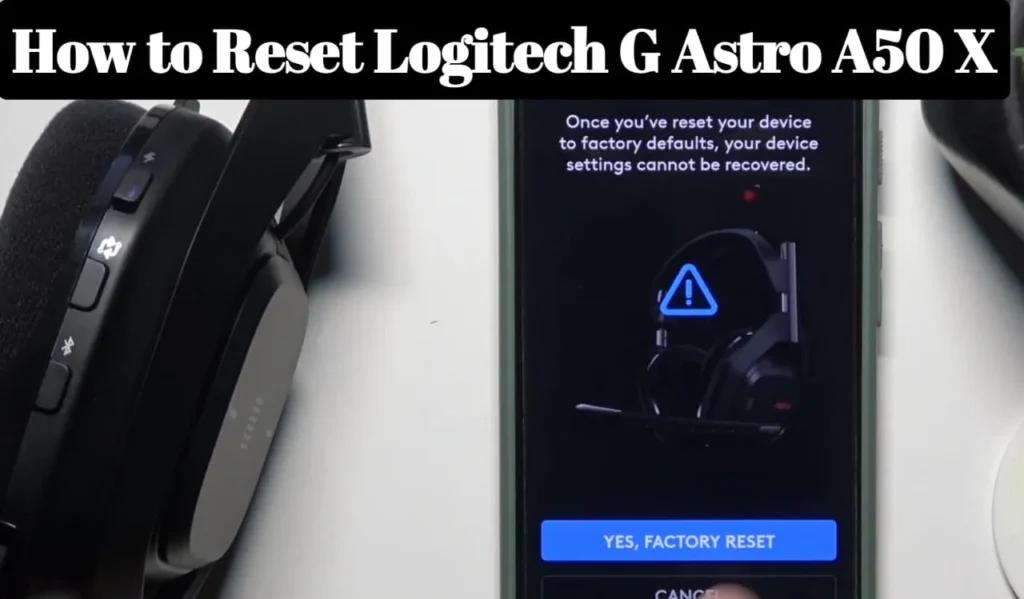
The manual resets are useful in the fast troubleshooting particularly when playing games on the go. They assist in correcting such issues as gaps in sound, microphones, or unresponsive controls. Players can trust this approach to be able to resume playing the game in the shortest possible time and enjoy the experience without having to engage in complicated operations to recharge the headset.
Resetting for Console and Wireless Performance
The wireless interference or having many paired devices may result in connectivity issues to console users. Unplug the USB transmitter, press the power button, which puts the headset in the pairing mode. Redo the connection between the headset and the console to ensure the restoration of normal signal recognition and greater stability in the wireless connection.
In the case of PC users, a manual and software reset could be required when the headset is not always able to pair. Removing stored connections and reinstating default settings is one way of guaranteeing performance stability in audio and non-interrupted gaming. This process ensures the best wireless performance, the quality of sound remains constant, and the functionality of the microphones in the case of long or competitive gaming.

Common Issues Solved by Resetting
Restoring A50 X solves the usual issues such as low volume, audio dropouts, microphone not functioning, or loss of wireless connection. Performance can be affected by firmware glitches or built up software conflicts. A reset will put the headset back in factory settings so that it can be relied upon to provide good audio output, has a microphone, and is stable.
Resetting also solves the problem with RGB lighting or the customized profiles. When the headset has stopped serving or responding to lighting or audio presets, default settings can be used again to regain normal functionality. This troubleshooting measure will help gamers to keep their gaming experience in high performance, stability and immersive audio.
Tips to Maintain Your Astro A50 X After Reset
Once they have reset it is important to maintain it well to avoid repetition of problems. Always update firmware and Logitech G Hub software, save the headset either in a safe place, and always check battery health. The practices maintain the sound quality, wireless stability, and performance.
A smaller number of paired devices will help to minimize conflicts, and no high temperatures will cause hardware damage. These tips of maintenance and regular resets should help the A50 X provide the stable performance, high-quality sound, and comfortable long gaming sessions without interruptions and glitches.
| Tip | What to Do |
|---|---|
| Charge fully | Plug in for 2–3 hours |
| Try a different cable | Use original/known-good USB |
| Clean charging contacts | Gently remove dust |
| Reset power | Hold power button ~15 sec |
| Test base/adapter | Try another power source |
My Personal Experience
I recently ran into a problem when my Logitech G Astro A50 X headset suddenly stopped connecting to my PC and console. No matter how many times I tried reconnecting it or checking the settings, the audio kept cutting out and the microphone wouldn’t work. It was frustrating because I use this headset for both gaming and team calls, so it disrupted my entire setup.
I decided to reset the headset following the above steps. The process was straightforward, but I made sure to carefully complete each step to avoid any further issues. After the reset, the connection stabilized, and all audio and microphone functions started working perfectly again, just like new.
You May Also Like
- 10 Best Gaming Headsets
- Best Budget Gaming Headsets
- Turtle Beach Stealth 600 Gen 2
- Razer BlackShark V2
- Logitech G Pro X 2 vs SteelSeries Arctis Nova Pro
FAQs about How to Reset Logitech G Astro A50 X
Conclusion
One way of solving these problems is by resetting the Logitech G Astro A50 X, which is an effective way of solving the connectivity, audio and software problems. Regardless of the software applied (Logitech G Hub or manual) a reset will clean up default settings and give the best performance with the headset. Frequent resets and due care will increase the life of the device and improve general gaming experiences.
Gamers can also be able to troubleshoot on their own and do not need to have to fix or replace their devices unnecessarily through the knowledge of these reset processes. By using this guide, your A50 X will provide you with the same audio experience, a reliable wireless connection and full-immersion during each gaming session.